

Inviting members
Directors manage who belongs to the organization.
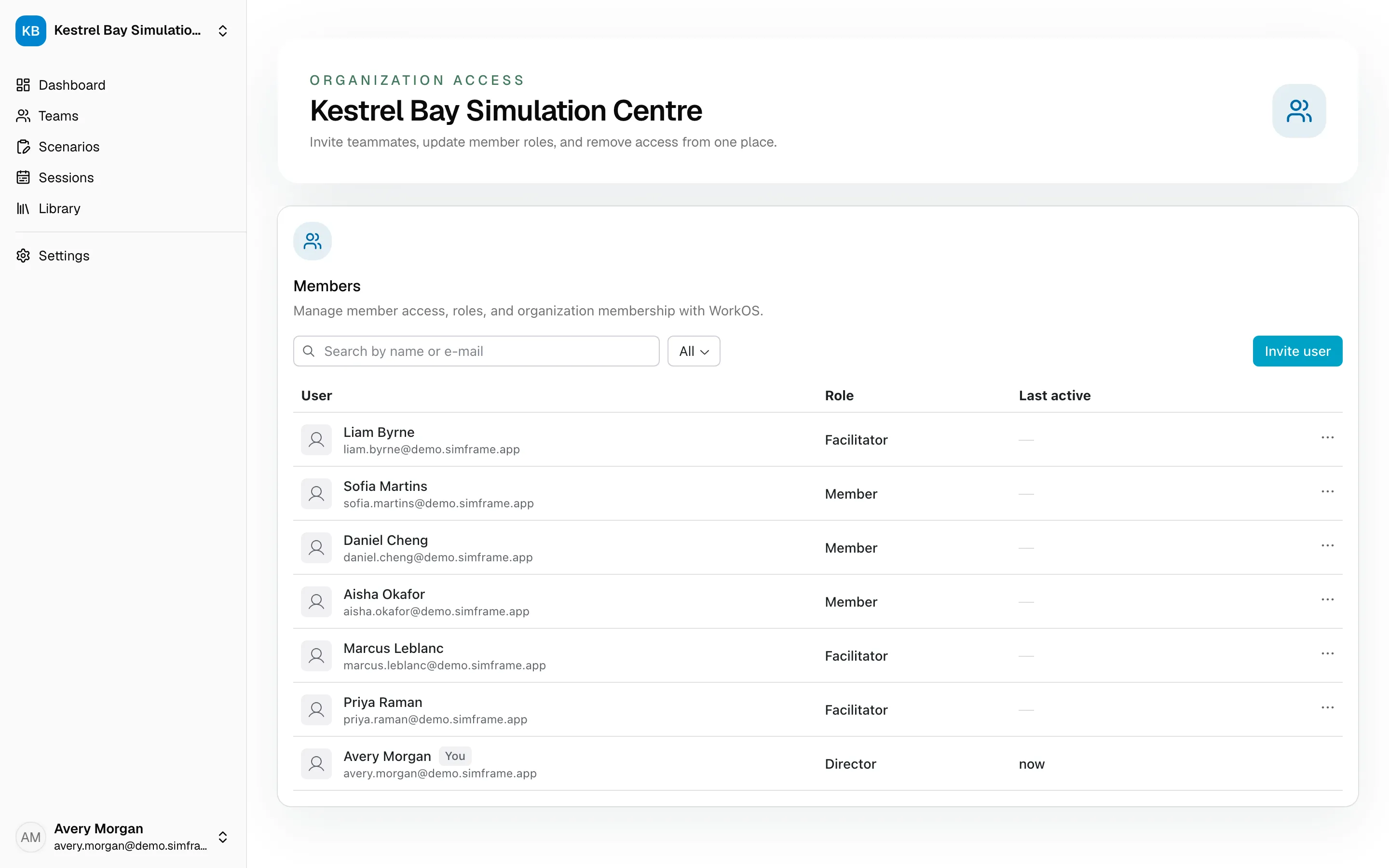
Open the Members page
Section titled “Open the Members page”- Select the organization name at the top of the sidebar.
- Choose Members.
If you don’t see Members, your role doesn’t allow you to manage members. Ask a director.
Invite a teammate
Section titled “Invite a teammate”- On the Members page, choose to invite a member.
- Enter their email address and pick a role.
- Send the invitation.
They receive an email with a link to join. Their account becomes active when they accept. Until then, the invitation shows as pending.
Change a role or remove someone
Section titled “Change a role or remove someone”From the members list you can change a member’s role or remove them from the organization. A role change takes effect the next time that person signs in.
Give people access to specific work
Section titled “Give people access to specific work”Inviting someone makes them a member, but facilitators and members only see the work they’re given access to. After they join:
- Add them to a team so they can see that team’s sessions.
- Share scenarios with them or with their team.