

Running a session
A session is a scheduled simulation: when and where it happens, which scenarios it runs, and what participants should read beforehand. Every session belongs to a team, and the team’s members can see it.
Create a session
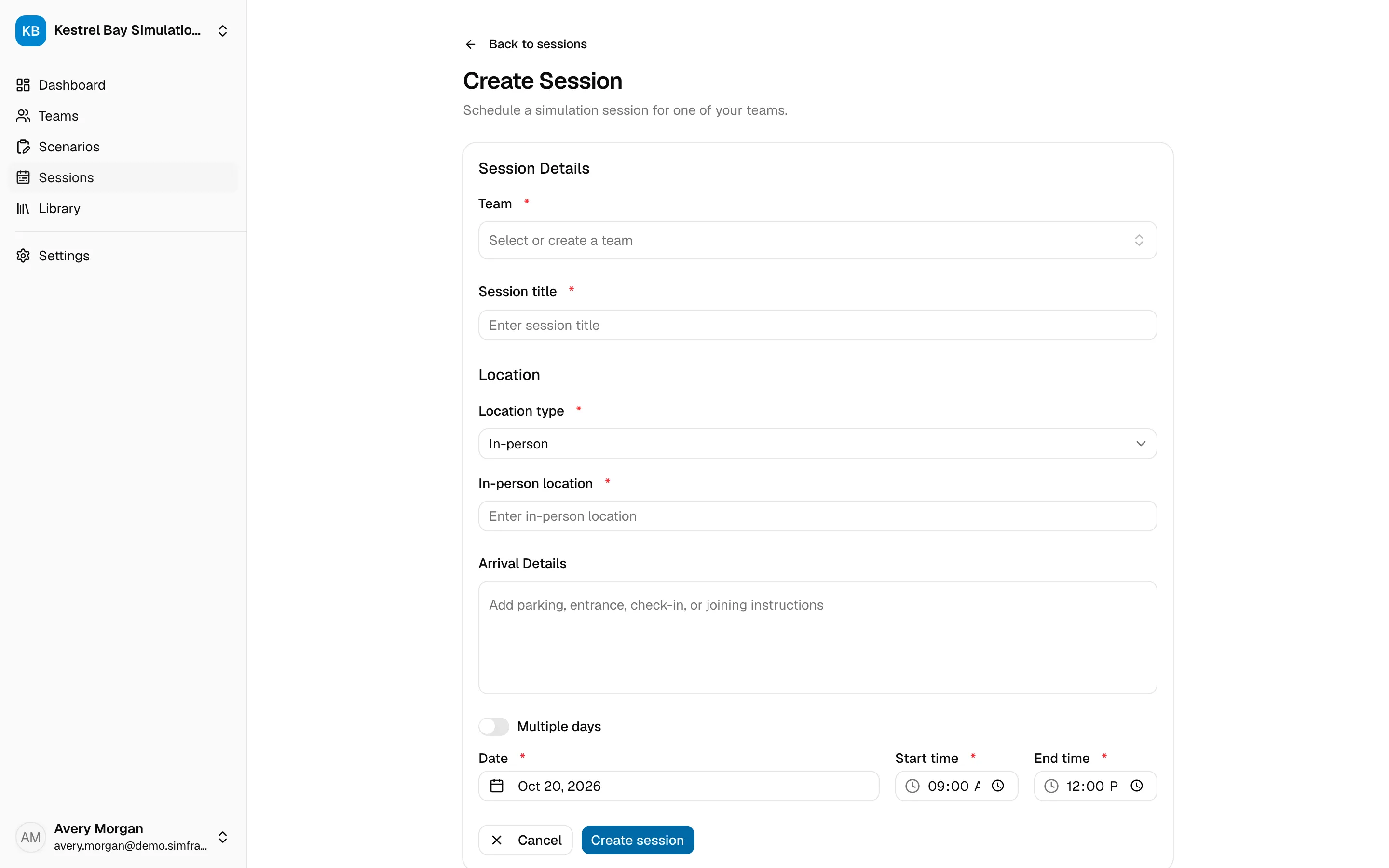
Section titled “Create a session”Directors and facilitators can create sessions. Facilitators can only add sessions to teams they’re an admin of.
- Open Sessions in the sidebar and choose Create session.
- Pick the Team, or create one from the same field.
- Enter a Session title.
- Set the Date, Start time, and End time. Turn on Multiple days for a session that runs over more than one day.
- Choose the Location type:
- In-person: enter the address or room.
- Virtual: enter the meeting link.
- Hybrid: enter both.
- Optionally, add Arrival Details, such as parking, which entrance to use, where to check in, or how to join.
- Choose Create session.
Prepare the session
Section titled “Prepare the session”Open the session from the Sessions list to finish setting it up. You can change any of its details in place by selecting them.
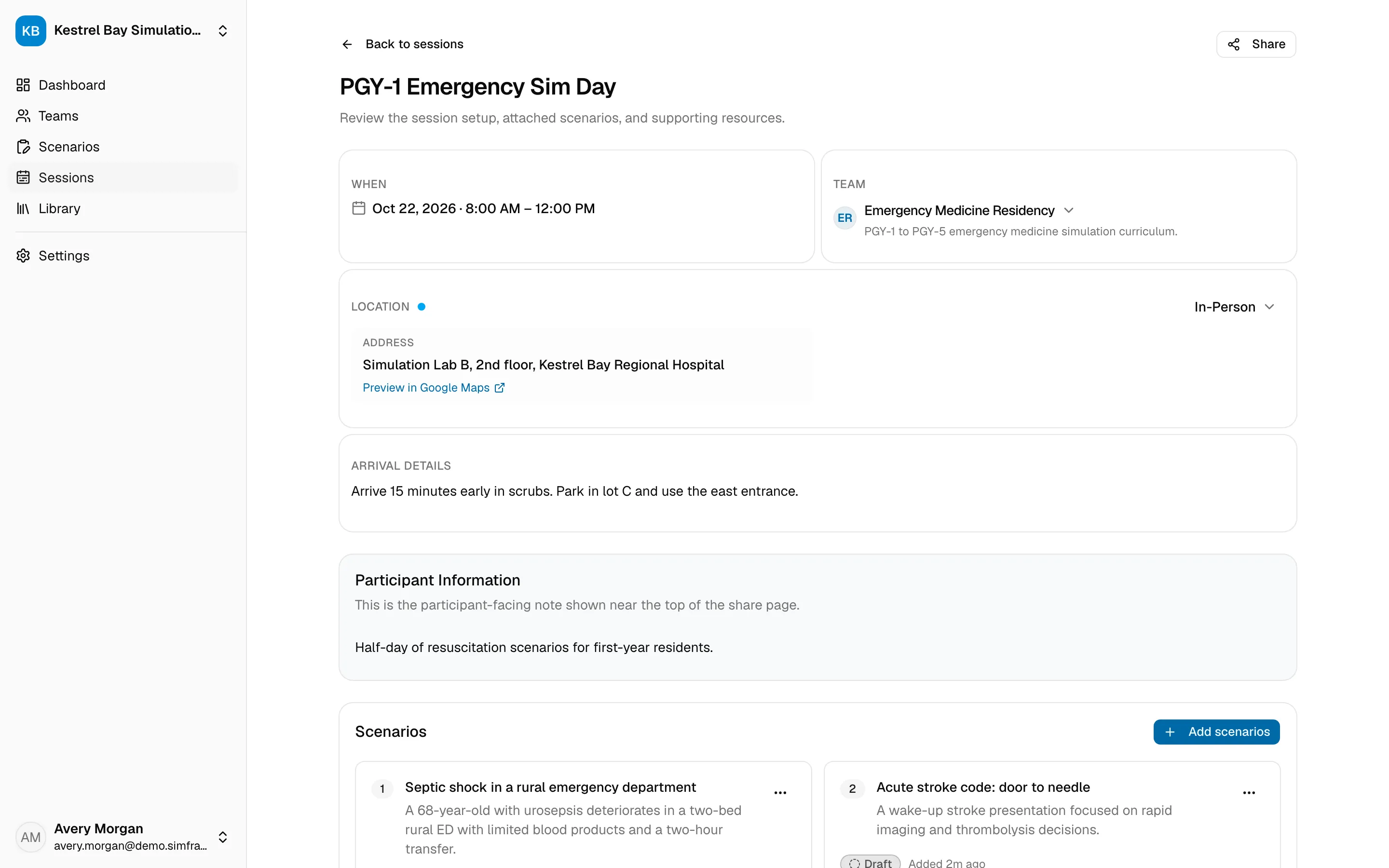
- Description: add notes about the session.
- Scenarios: choose Add scenarios to pick the scenarios you’ll run. Each one shows its status.
- Participant Resources: review what participants will see, and upload extra files for this session. See Resources.
Share the participant link
Section titled “Share the participant link”Participants don’t need a SimFrame account. Send them the session’s participant link instead.
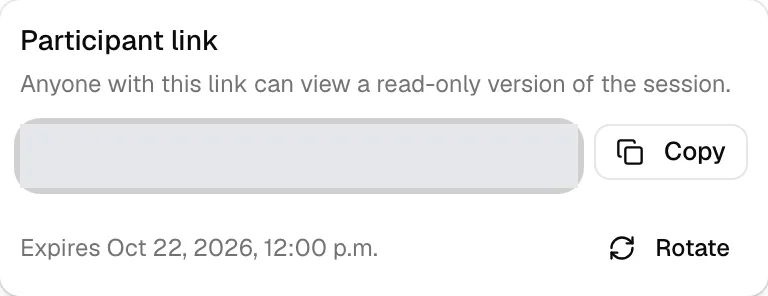
- On the session’s page, choose Share.
- Choose Copy and send the link to participants.
Anyone with the link can view a read-only page with:
- The session title, date, time, and location, with directions in Apple Maps or Google Maps for in-person sessions.
- The arrival details.
- The participant resources, ready to open or download.
The link stops working one week after the session ends. The Share popover shows its expiry date. If you change the session’s end time, the link’s expiry moves to one week after the new end time.
Rotate the link
Section titled “Rotate the link”If a link was sent to the wrong people, choose Rotate in the Share popover, then Rotate link to confirm. The old link stops working immediately, and you get a new one to send.
Anyone who opens an expired or rotated link sees Session unavailable and is asked to get a new link from the facilitator.
Find sessions
Section titled “Find sessions”The Sessions list shows Upcoming sessions by default. Switch to Completed for past sessions, or All. The dashboard also lists upcoming sessions.