

Sharing and versions
Share a scenario
Section titled “Share a scenario”Directors can see every scenario. Everyone else sees the scenarios they created or that have been shared with them, directly or through a team.
To share a scenario, open it in the editor and select Share in the tool rail.
- Under Add a person or team, search for a member or team.
- Pick the access level.
- Add them.
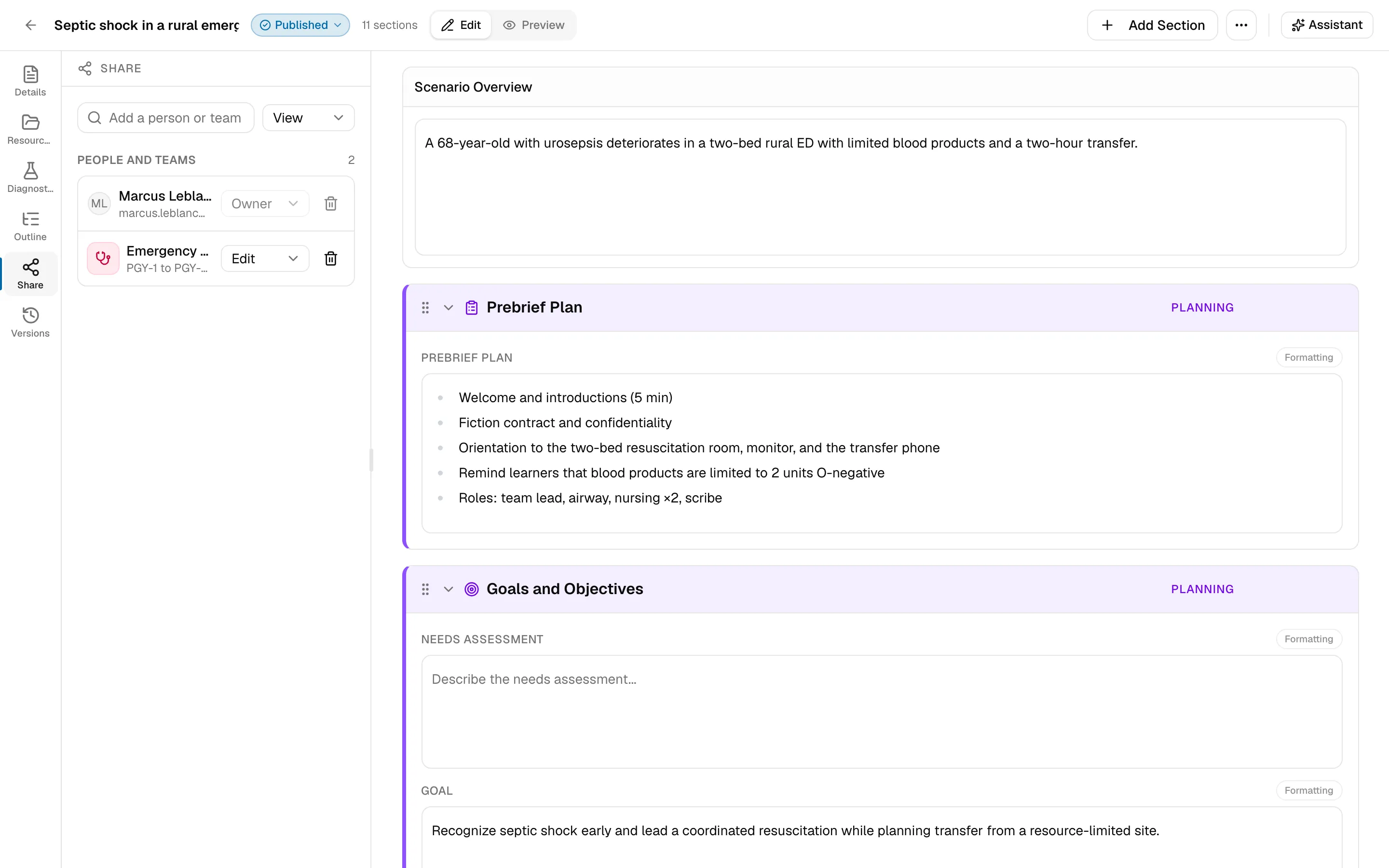
| Access | Can |
|---|---|
| View | Open the scenario and its resources. |
| Edit | Also change the scenario’s content and add or update its resources. |
| Owner | Also delete the scenario, delete its resources, and manage who has access. |
Change someone’s access from the list, or remove it with Remove access. A scenario always needs at least one owner, so promote someone else before removing the last one.
When you share with a team, everyone on the team gets that access, including people who join the team later.
Versions
Section titled “Versions”Every change to a scenario is kept. Select Versions in the tool rail to see its history.
- Select a version to view it. The main column shows that version read-only, with the note Viewing version preview.
- Choose Restore this version to make it the current content, or Exit preview to go back.
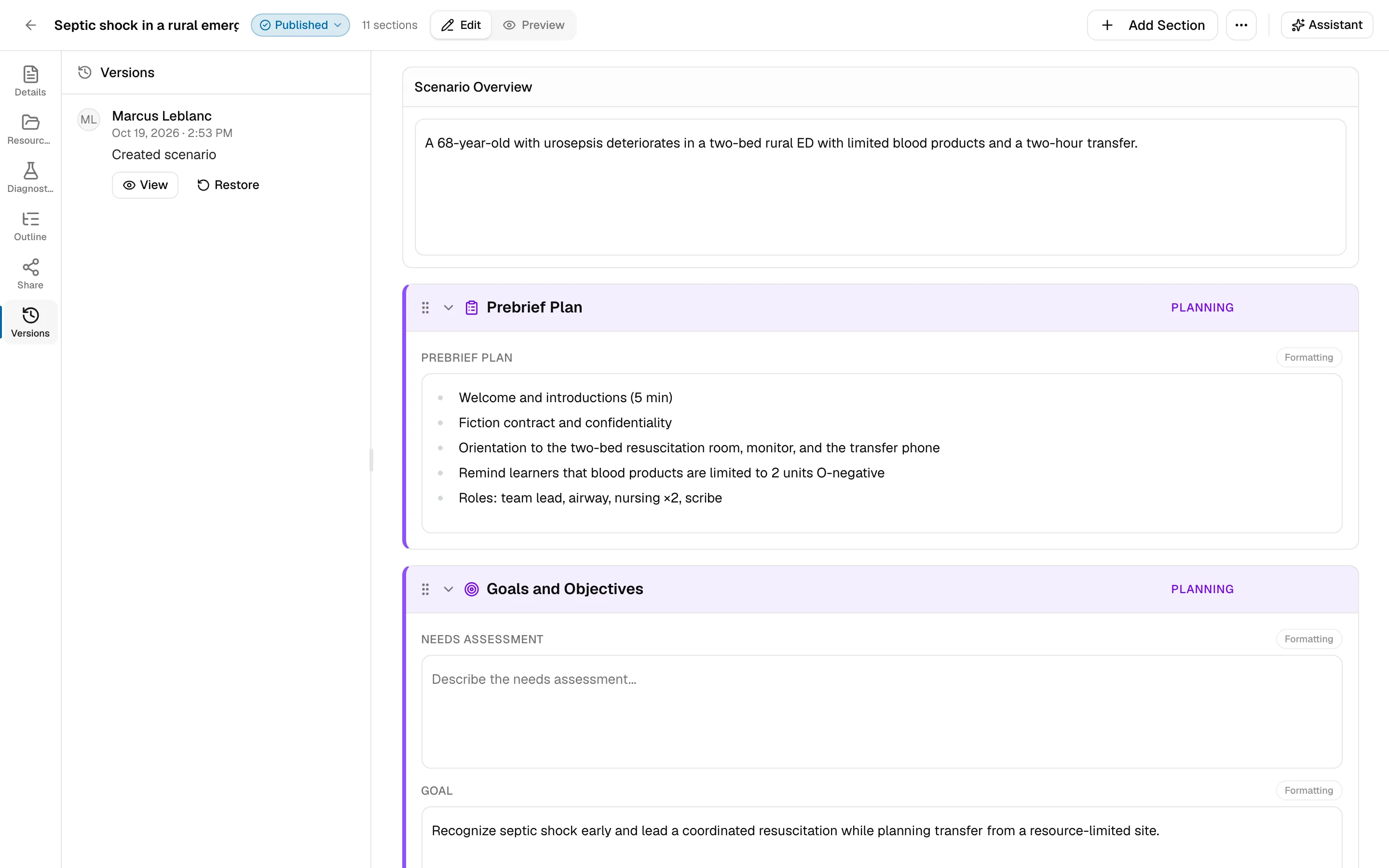
Restoring doesn’t erase anything: it’s recorded as a new version (Restored an earlier version), so you can undo it the same way.