

Templates
A template is a starting point for new scenarios. It records which sections a scenario uses and which fields are hidden, and it can keep the content of the sections you choose.
Use templates to standardize how your organization writes cases. For example, a template for emergency cases might include Scenario Setting, Patient Information, Emergency Department Chart, Scenario Progression, and a facilitator guide with your standard debrief prompts already filled in.
Save a scenario as a template
Section titled “Save a scenario as a template”Directors and facilitators can create templates.
- Open the scenario in the editor.
- Open the ⋯ menu and choose Save as template.
- Enter a Template name and, optionally, a description.
- Select the sections whose current content you want to keep. Every other section is saved empty.
- Save the template.
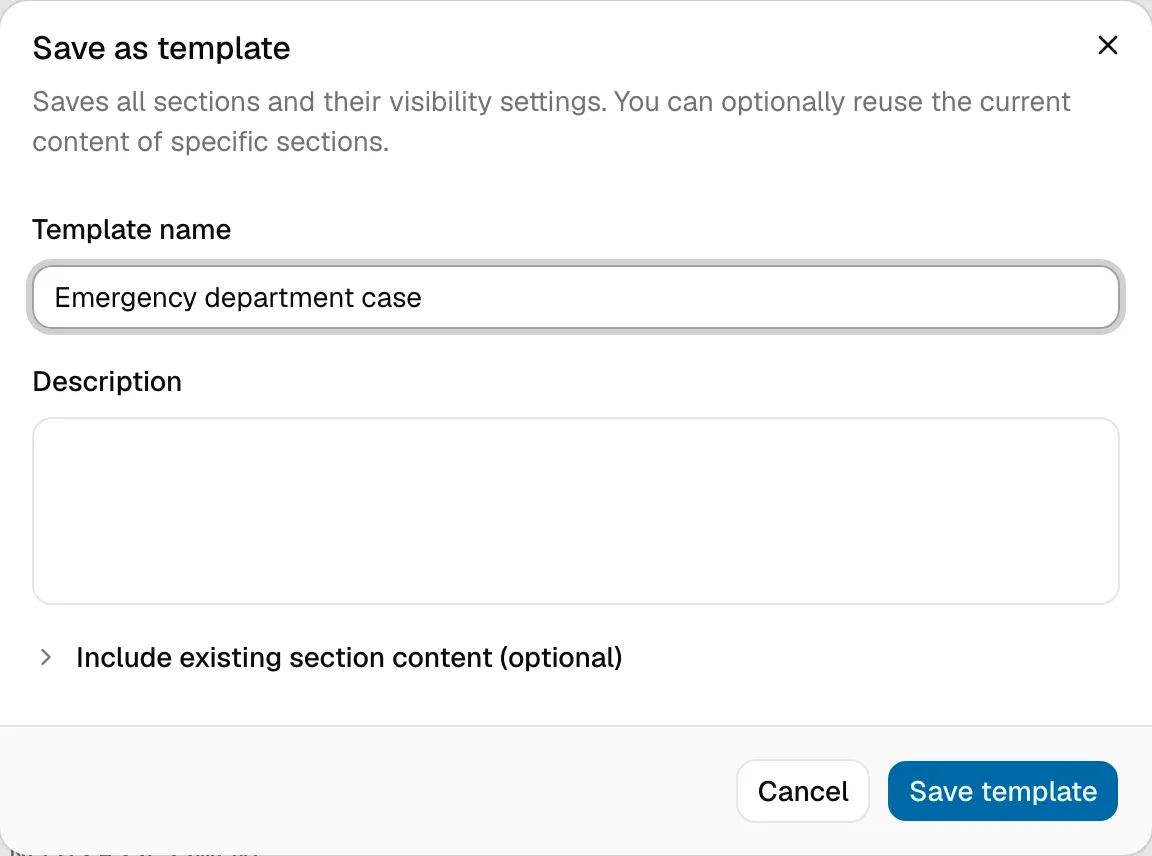
The template gets every section in the scenario and its hidden-field settings, whether or not you keep their content.
Start a scenario from a template
Section titled “Start a scenario from a template”Choose Create scenario on the Scenarios page and pick the template under Template. The new scenario starts with the template’s sections and saved content. After that, it’s independent: later changes to the template don’t affect it, and its Details panel records which template it came from.
Manage templates
Section titled “Manage templates”On the Scenarios page, switch the view from Scenarios to Templates to see your organization’s templates. From there you can edit a template’s description or delete it.
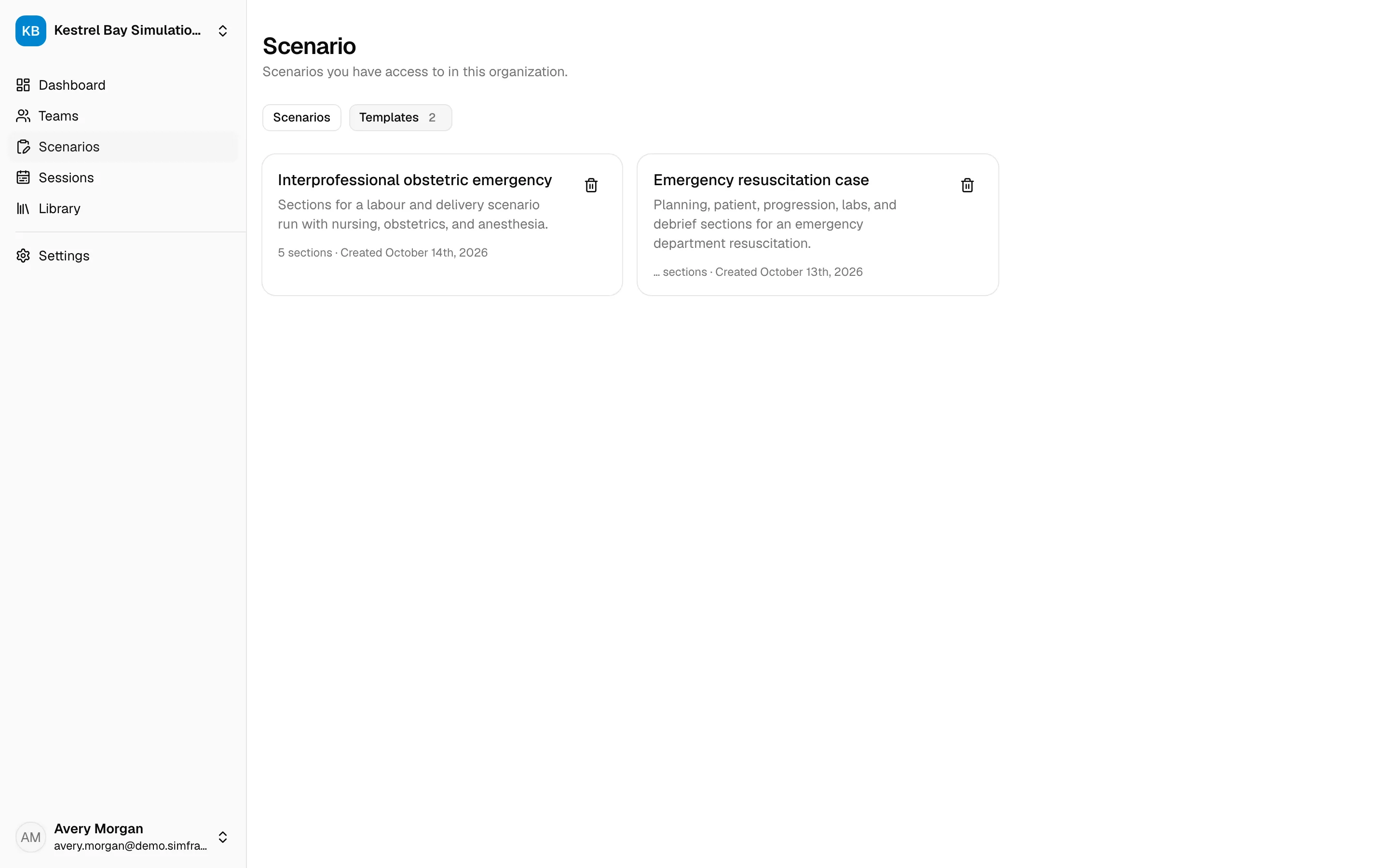 Deleting a template doesn’t affect scenarios already created from it.