

Resources and file uploads
Resources are the files and links that go with your simulations: readings, slide decks, videos, checklists, and reference websites. Everything you upload is stored once in your organization’s Library and can then be attached to any number of scenarios and sessions.
The library
Section titled “The library”Open Library in the sidebar. Directors and facilitators can use it. Members see the resources attached to the scenarios and sessions they can open.
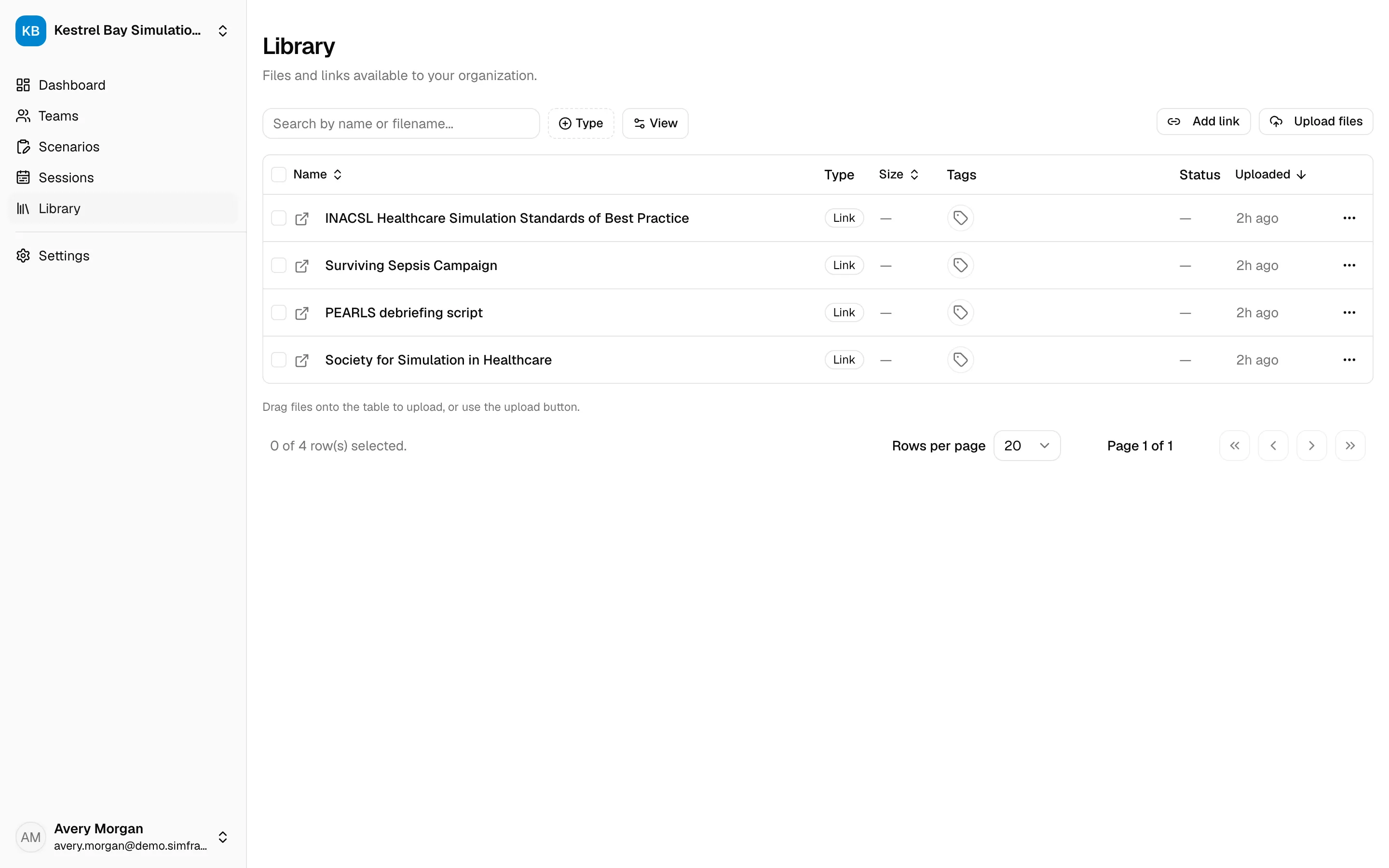
- Upload files: choose files, or drag them onto the page.
- Add link: enter a name (for example, ACLS guidelines) and a web address starting with
https://. - Search by name or filename, and filter by Type or Tags.
- Use each row’s menu to Download a file, Open link, Rename, or Delete.
- Select several rows to tag them all at once.
Manage the organization’s resource tags under Settings → Resource tags.
Uploads
Section titled “Uploads”Uploads continue in the Uploads panel at the bottom of the screen while you keep working. Newly uploaded files show Processing briefly before they’re ready to open.
Allowed file types and sizes
Section titled “Allowed file types and sizes”SimFrame accepts these file types:
| Type | Extensions | Maximum size |
|---|---|---|
.pdf |
50 MB | |
| Word, Excel, PowerPoint | .docx, .xlsx, .pptx |
100 MB |
| Text and CSV | .txt, .csv |
10 MB |
| Images | .jpg, .jpeg, .png, .webp, .gif |
25 MB |
| Audio | .mp3, .m4a, .wav |
50 MB |
| Video | .mp4, .mov, .webm |
500 MB |
Other formats are rejected, including SVG and HTML files, older or macro-enabled Office formats (such as .doc or .xlsm), archives such as .zip, and programs. The file name must end in one of the extensions above.
Attach resources to a scenario
Section titled “Attach resources to a scenario”Open the scenario in the editor and select Resources in the tool rail. Resources are grouped by who they’re for:
| Group | For |
|---|---|
| Participant | Shared with session participants before the session, once the scenario is published. |
| References | Reference material for facilitators. Not shared with participants. |
Choose the group, then use the add button to:
- From Library: pick existing files and links.
- Upload files: upload new files. They’re added to the library and attached to the scenario.
- Add link: save a new link to the library and attach it.
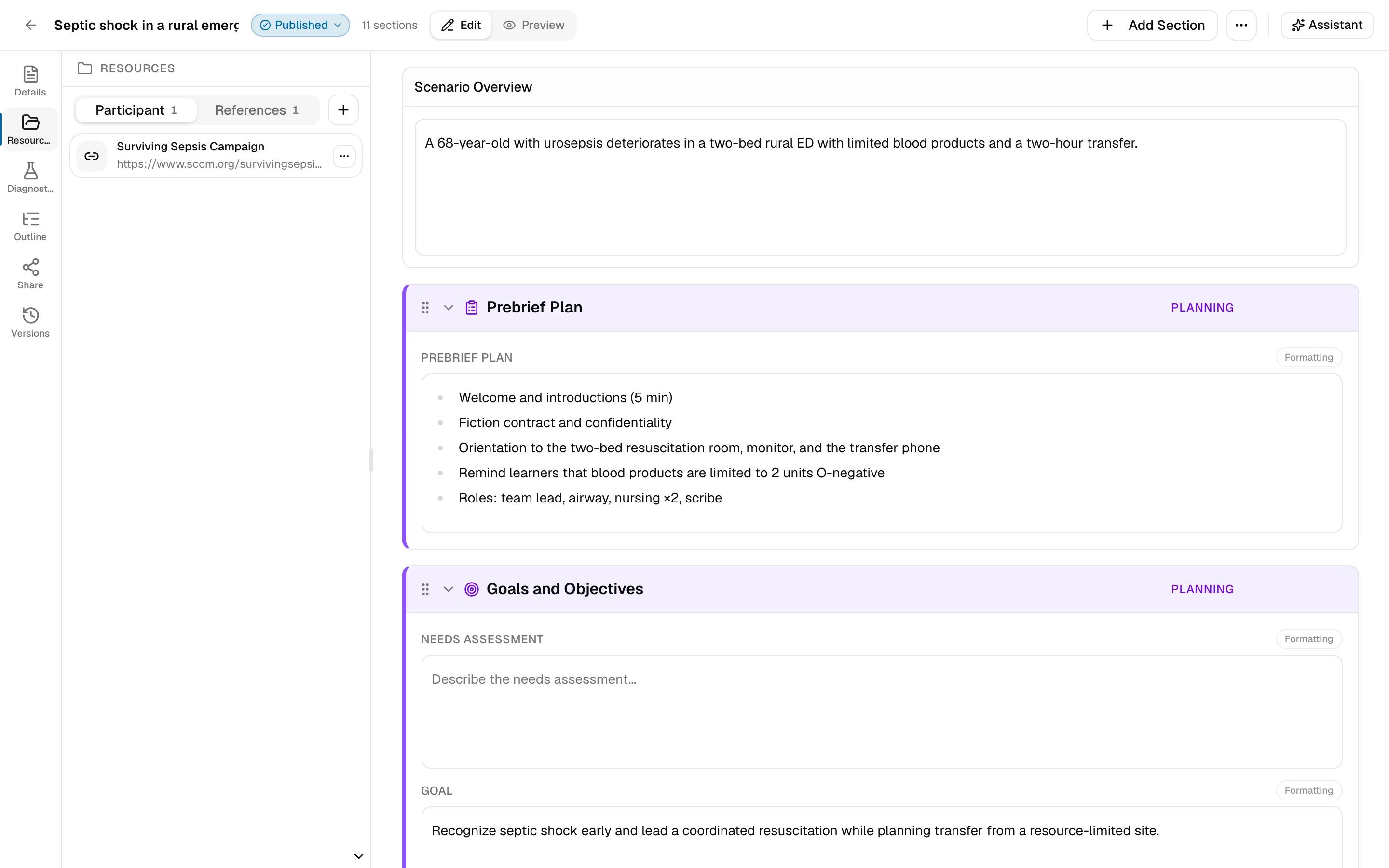
You can also drop files straight onto the panel. Use a resource’s menu to Move to or Copy to the other group, or Remove from scenario. Removing a resource from a scenario leaves it in the library.
Diagnostic images are managed from the Diagnostics panel instead. See Sections.
Attach resources to a session
Section titled “Attach resources to a session”On a session’s page, Participant Resources lists everything participants can open from the participant link. Drag files onto the table or use the upload button to add files just for that session.
Participant prep resources from the session’s scenarios are included automatically once each scenario is published.