

Sections
A scenario is made of sections. Each section is a structured form for one part of the case, such as the patient’s history or how the case progresses. Add sections with Add Section in the editor. Each type can be used once per scenario.
Section types
Section titled “Section types”The Add Section menu groups sections into categories.
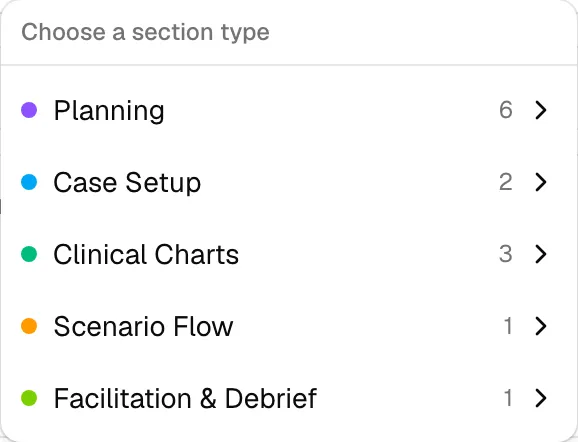
Planning
Section titled “Planning”| Section | Contains |
|---|---|
| Prebrief Plan | The pre-simulation briefing plan and overview. |
| Basic Assumption | The shared assumption about participants that’s set during the prebrief. |
| Goals and Objectives | Needs assessment, goal, learning objectives, and interprofessional objectives. |
| Participants and Learners | Target learner groups, levels, and interprofessional disciplines. |
| Equipment, Setup & Fidelity Requirements | Staffing, environment, monitors, fidelity, simulators, additional equipment, and consumables. |
| Simulated Patients and Embedded Participants | One entry per scripted role: participant type, character, script, cues, and costume. |
Case Setup
Section titled “Case Setup”| Section | Contains |
|---|---|
| Scenario Setting | Location, how the scenario starts, and the scenario stem. |
| Patient Information | Demographics, allergies, history, medications, hidden history, and physical exam findings. |
Clinical Charts
Section titled “Clinical Charts”Add whichever chart matches the care setting:
| Section | Contains |
|---|---|
| Emergency Department Chart | Triage note, chief concern, initial assessment, orders, and disposition. |
| Inpatient Chart | Admission reason, unit or service, current status, problems, orders, and care plan. |
| Clinic/Office Chart | Visit reason, appointment context, history, exam, assessment, and follow-up. |
Scenario Flow
Section titled “Scenario Flow”| Section | Contains |
|---|---|
| Scenario Progression | One entry per state of the case: duration, vital signs, presentation, expected learner actions, and facilitator cues. |
Diagnostics
Section titled “Diagnostics”| Section | Contains |
|---|---|
| Lab Results | Lab values with reference ranges from your organization’s lab test catalog. |
| Diagnostics & Imaging | ECGs, X-rays, CT, ultrasound, and other images revealed during the case. |
Facilitation & Debrief
Section titled “Facilitation & Debrief”| Section | Contains |
|---|---|
| Facilitator Guide / Debriefing Notes | Facilitator guidance, discussion prompts, and debriefing notes. |
Repeating entries
Section titled “Repeating entries”Scenario Progression and Simulated Patients and Embedded Participants hold a list of entries. Use the add button at the end of the section (for example, Add Progression State) to add another, and the remove button on an entry to delete it.
Hiding fields
Section titled “Hiding fields”Some sections list their optional fields as toggles above the form. Select a field’s name to hide it, and select it again to show it. Hidden fields are left out of the preview and the PDF, but their content is kept.
Lab results and diagnostics
Section titled “Lab results and diagnostics”Open the Diagnostics panel to work with these two sections.
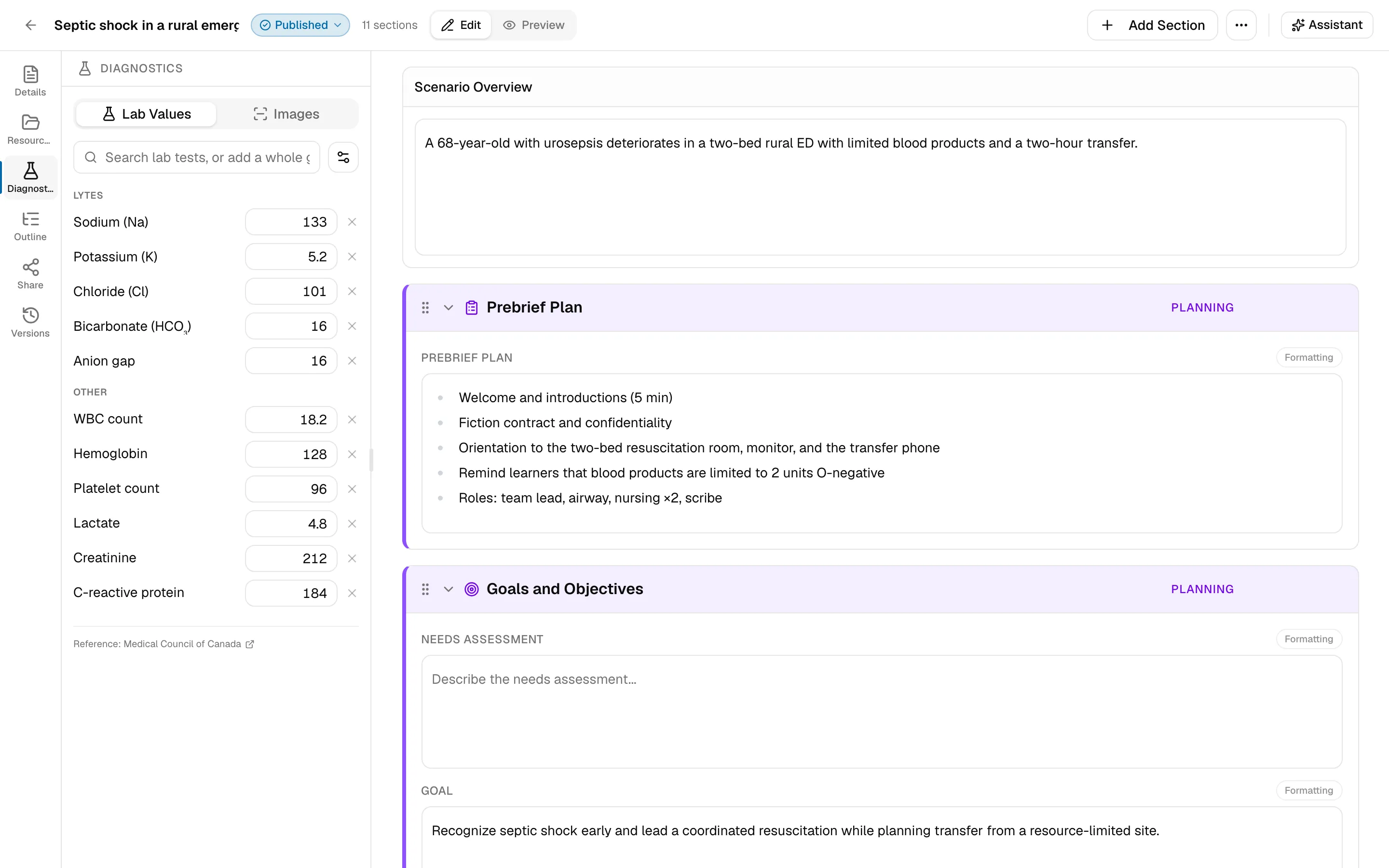
Lab values: search for a test, or add a whole group of tests at once, then enter each value. Reference ranges come from your organization’s lab test catalog. People who can manage the library can edit the catalog with Manage lab tests: add tests with their unit and normal range, and organize them into groups.
Diagnostic images: drop images or PDFs onto the panel, upload them, or choose existing ones from the library (see allowed types and sizes). They appear in the case where the Diagnostics & Imaging section is shown.
Section order in the preview
Section titled “Section order in the preview”The editor keeps sections in the order you arrange them. The preview and PDF present them in a consistent reading order by category, so a case reads the same way no matter the order its sections were added.