

Creating and editing scenarios
A scenario is a simulation case: its objectives, setting, patient, progression, diagnostics, and facilitator notes, plus the files that go with it.
Create a scenario
Section titled “Create a scenario”Directors and facilitators can create scenarios.
- Open Scenarios in the sidebar.
- Choose Create scenario.
- Enter a Scenario name. Names must be unique among the organization’s active scenarios.
- Under Template, keep Blank scenario or pick one of your organization’s templates.
- Choose Create scenario.
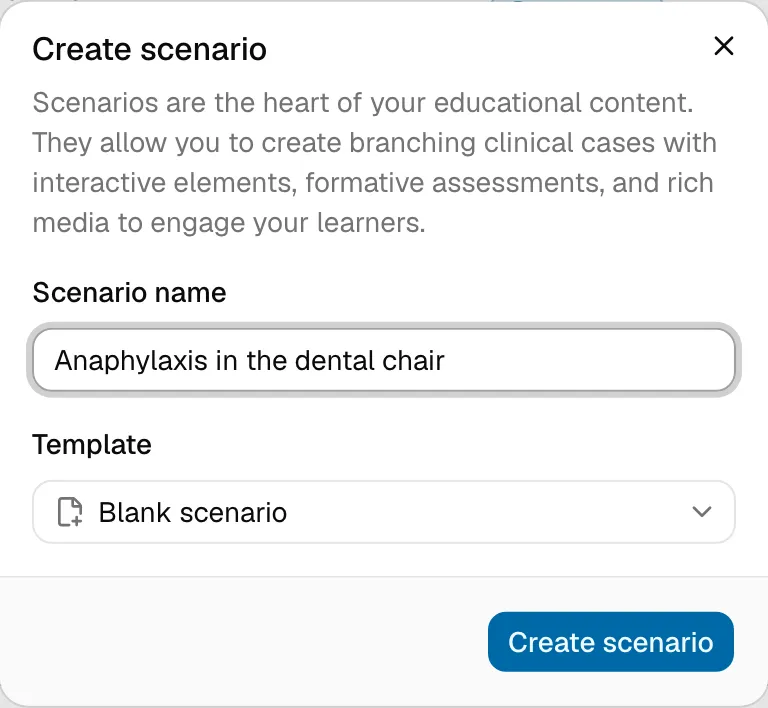
The scenario opens in the editor. A blank scenario starts with no sections. A scenario created from a template starts with the template’s sections and any content saved with it. You become the scenario’s owner.
The editor
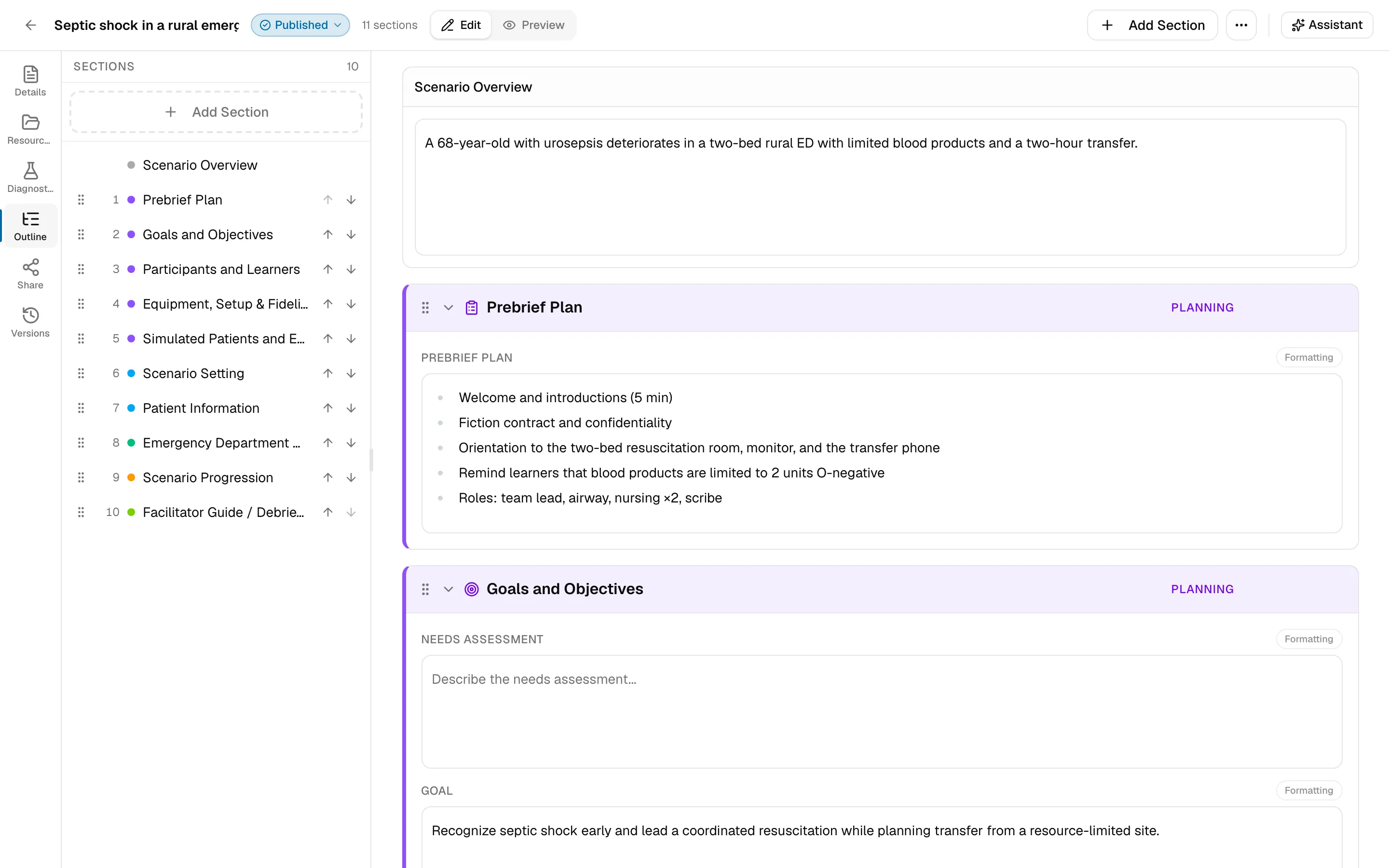
Section titled “The editor”The editor has three areas:
- The main column: the scenario’s title and description, then each of its sections.
- The tool rail on the left: Details, Resources, Diagnostics, Outline, Share, and Versions. Select a tool to open its panel, and select it again to close the panel.
- Assistant on the right: the case assistant.
Use the Edit / Preview switch at the top to move between editing and the finished, read-only view of the case.
Saving and editing together
Section titled “Saving and editing together”Changes save automatically as you type. The indicator at the top shows Saving, Saved, or Save failed.
Several people can edit the same scenario at once. Everyone’s changes appear live, and each editor is listed as a contributor in Details.
Work with sections
Section titled “Work with sections”- Choose Add Section to add one. Sections are grouped by category in the menu. Each section type can be added once per scenario, and ones already in use are marked Added. See Sections for what each one contains.
- Drag a section by its handle, or use the move up and move down buttons, to reorder it.
- Collapse a section to focus on the others.
- Delete a section with its delete button. If you delete one by mistake, restore an earlier version from Versions.
Some sections let you hide individual fields you don’t need. A hidden field keeps its content, so you can show it again later.
Panels
Section titled “Panels”| Panel | Use it to |
|---|---|
| Details | See contributors, created and last-updated dates, where the scenario came from (a template or a duplicated scenario), and manage its tags. |
| Resources | Attach files and links. See Resources and file uploads. |
| Diagnostics | Enter lab values and add diagnostic images. See Sections. |
| Outline | Jump to any section. |
| Share | Give people and teams access. See Sharing and versions. |
| Versions | Browse and restore earlier versions. |
Tags and status
Section titled “Tags and status”Tags help you find scenarios later. Add them in the Details panel, and manage the organization’s scenario tags under Settings → Scenario tags.
Every scenario has a status:
| Status | Meaning |
|---|---|
| Draft | Work in progress. Not shared with session participants. |
| Published | Ready to run. Its participant prep resources are shared with participants of sessions that use it. |
| Archived | Retired. Kept for reference, not shared with participants. |
To change the status, select the status badge in the scenarios list, or open the row’s menu and choose Publish, Unpublish, Archive, or Restore.
Find, duplicate, and delete scenarios
Section titled “Find, duplicate, and delete scenarios”The Scenarios list can be searched by name and filtered by status and tag.
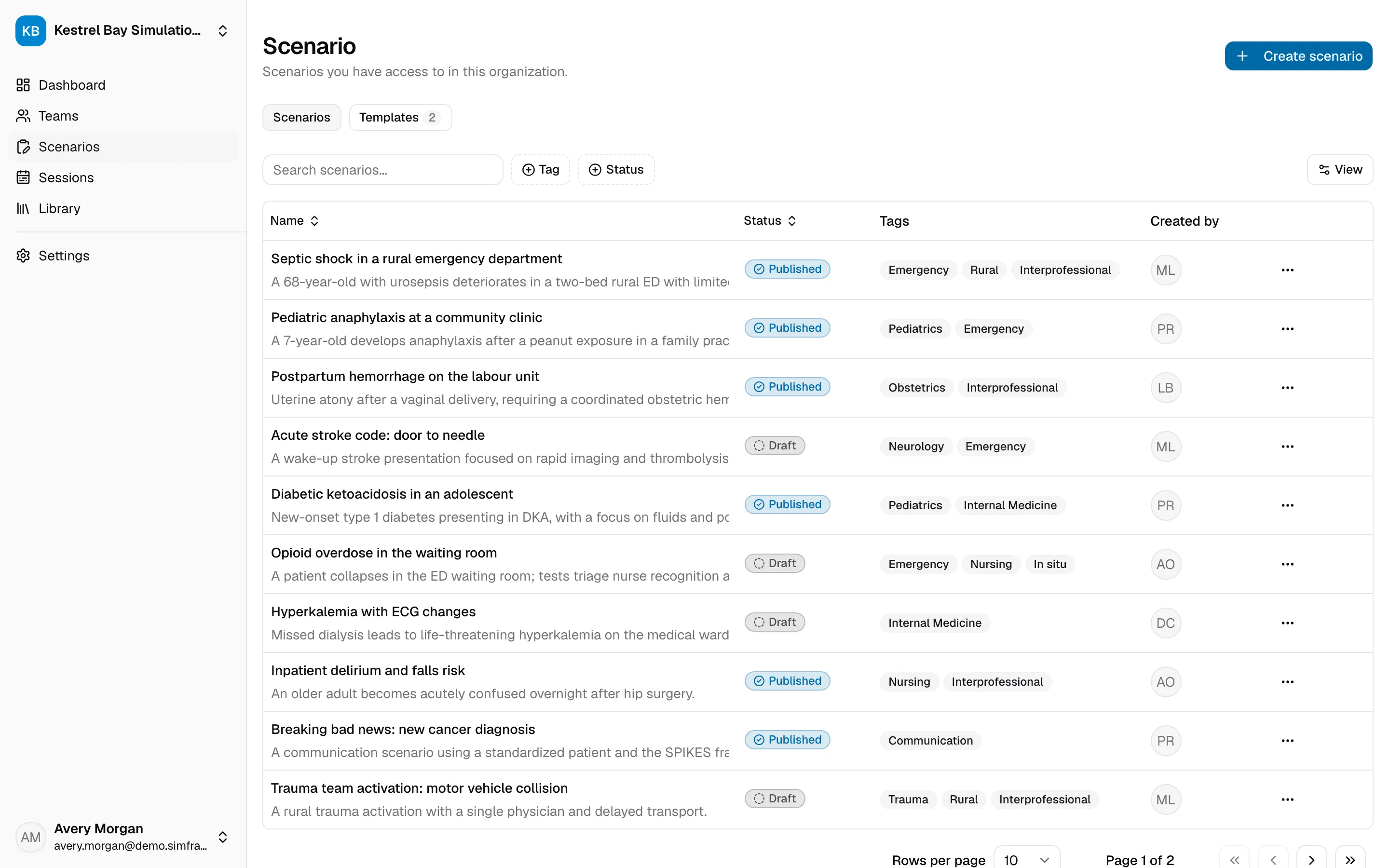
Each row’s menu offers:
- View: open the read-only preview.
- Edit: open the editor.
- Duplicate: copy the scenario and its content into a new scenario named … (Copy).
- Delete: remove the scenario.
Duplicate and Delete are also in the ⋯ menu inside the editor, along with Download PDF and Save as template.
If you can open a scenario but not edit it, the editor shows View-only access. Ask its owner for edit access.