

Exporting to PDF
Anyone who can view a scenario can download it as a PDF, for example to print a facilitator copy or share it outside SimFrame.
Download a PDF
Section titled “Download a PDF”-
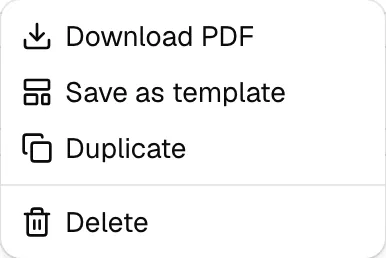
In the editor, open the ⋯ menu and choose Download PDF.
-
In the preview, choose Download PDF.
SimFrame shows Generating PDF while it prepares the file, then downloads it.
What’s in the PDF
Section titled “What’s in the PDF”The PDF matches the scenario’s Preview:
- The title, description, tags, contributors, and created and updated dates.
- Every section in presentation order, without hidden fields.
- Lab results with their reference ranges, and diagnostic images.
Each page has a footer with the scenario title, the export date, and the page number. Dates appear in your own time zone.
Check the Preview before you export. What you see there is what prints.
Troubleshooting
Section titled “Troubleshooting”| Message | What to do |
|---|---|
| Scenario is too large to export as a PDF. | The scenario has too much content, usually large images, for a single PDF. Remove or replace some large diagnostic images and try again. |
| The PDF could not be created. Please try again. | Something went wrong while printing. Try again in a moment. |