
Organizations and roles
An organization is your institution’s workspace in SimFrame. Its scenarios, sessions, teams, and library are shared with its members and kept separate from every other organization.
The SimFrame team creates organizations. If your institution needs a new one, contact SimFrame.
Every member has one organization role. Directors assign roles when they invite members.
| Role | What they can do |
|---|---|
| Director | Everything: manage members and organization settings, and view, edit, share, and delete every scenario, team, session, and library item. |
| Facilitator | Create scenarios, teams, and sessions, and upload to and browse the library. Facilitators see the scenarios, teams, and sessions they create or are given access to. |
| Member | View the teams, scenarios, and sessions they’re added to. |
Beyond the organization role, people get access to specific work in two ways:
- Scenario access: a scenario can be shared with a person or a team as View, Edit, or Owner. See Sharing and versions.
- Team membership: team members see the team’s sessions. See Teams.
Switch organizations
Section titled “Switch organizations”If you belong to more than one organization, select the organization name at the top of the sidebar and pick another one. Only organizations you’ve joined appear. Pending invitations don’t show up until you accept them.
Organization settings
Section titled “Organization settings”Open Settings in the sidebar. You only see the pages you’re allowed to change:
- General (directors): the organization’s name, description, and country.
- Resource tags: the tags used to organize the library.
- Scenario tags: the tags used to organize scenarios.
The dashboard
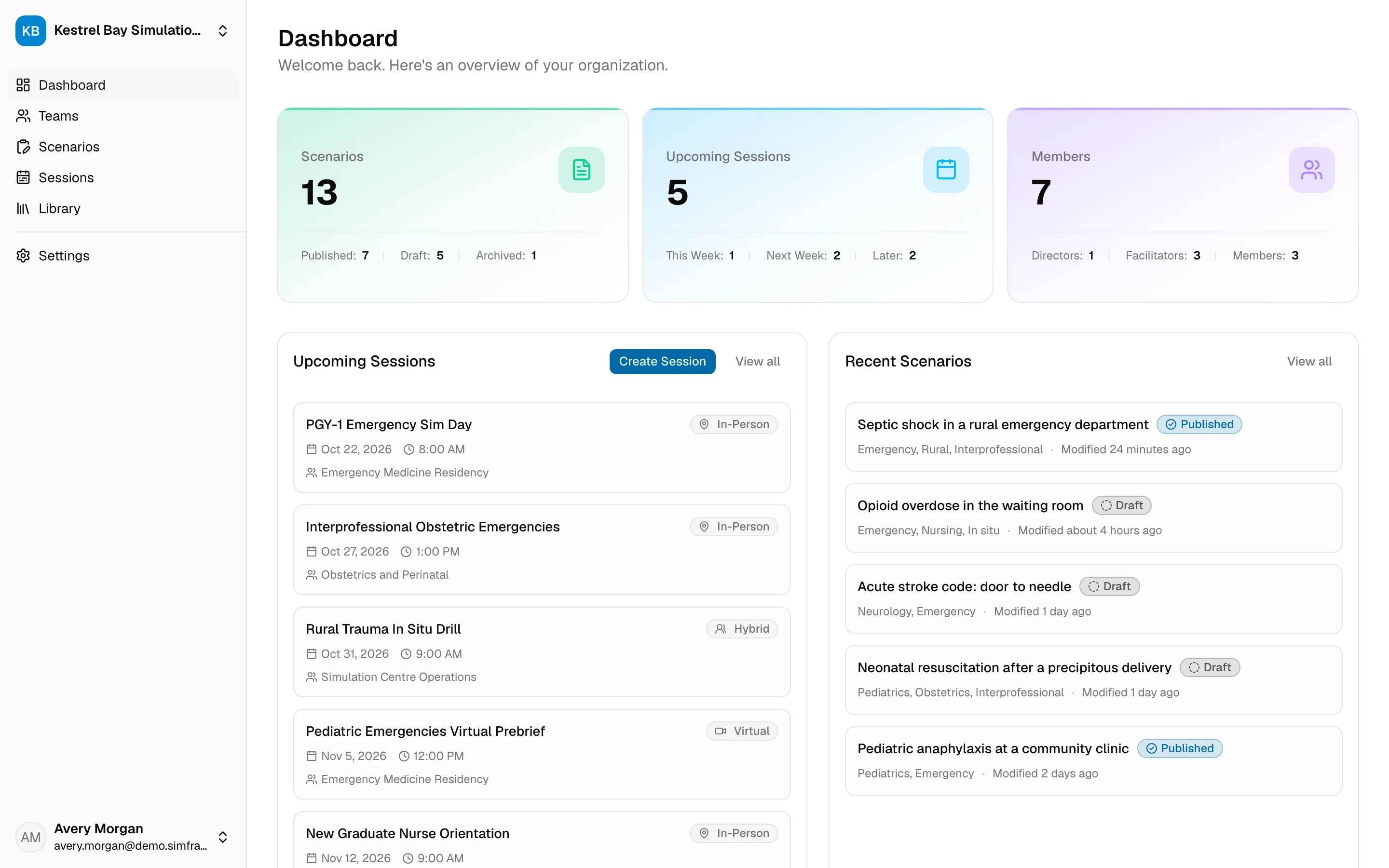
Section titled “The dashboard”Dashboard is the first page you see after signing in. It shows summary counts, your recent scenarios, upcoming sessions, and recent activity in the organization.